Split PDF
Extract pages or divide a PDF into separate documents.
or drop files anywhere on this page
One PDF at a time
Explore other tools
How to split a PDF
Take out just the pages you need, or break a long PDF into smaller files.
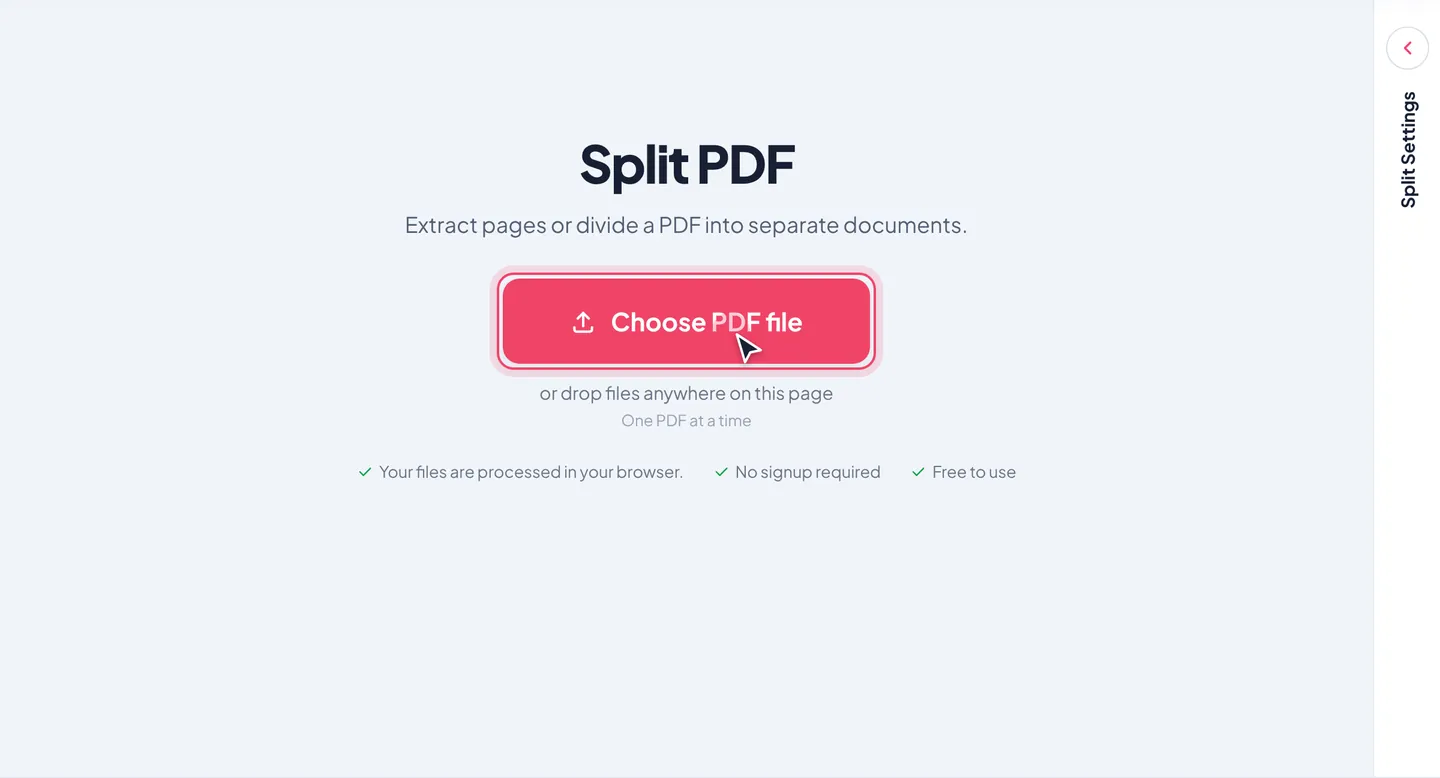
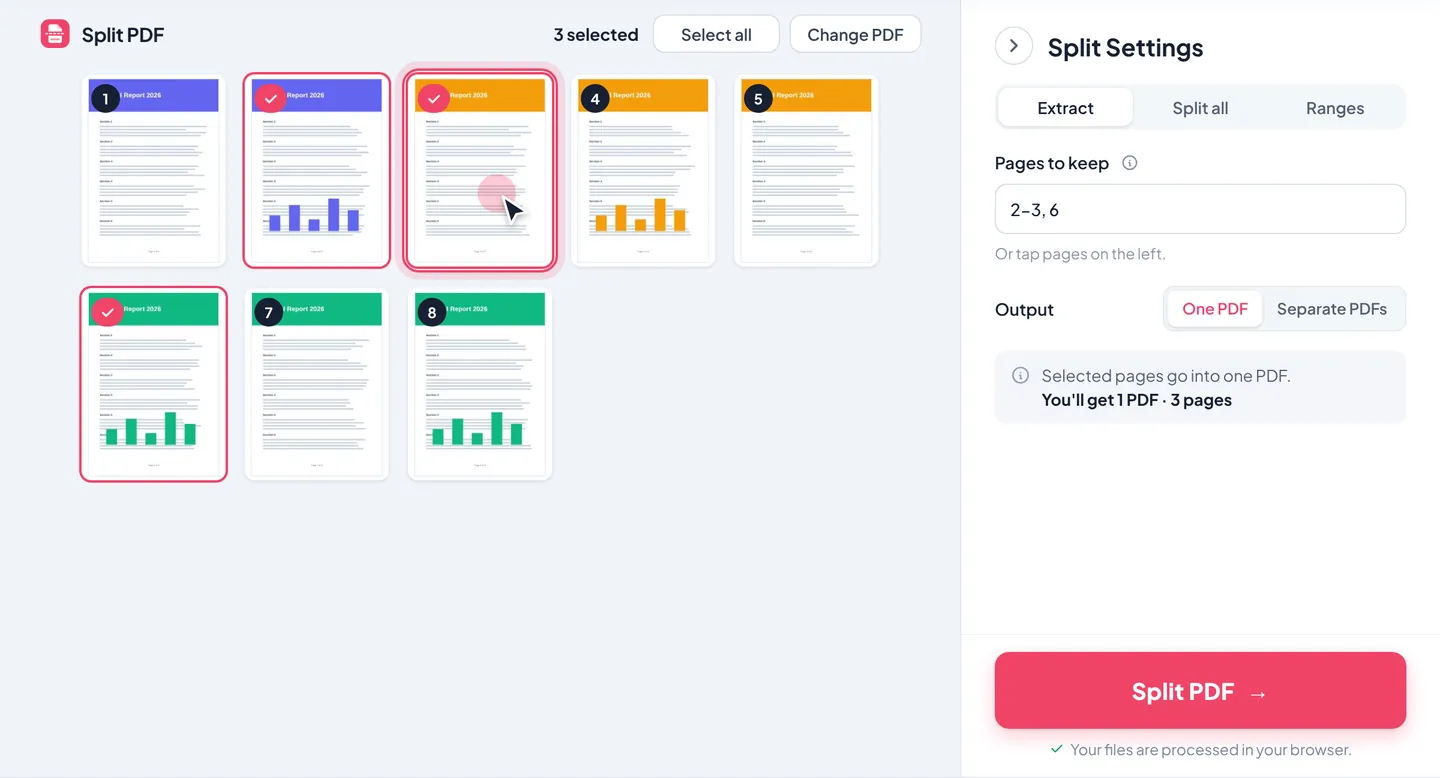
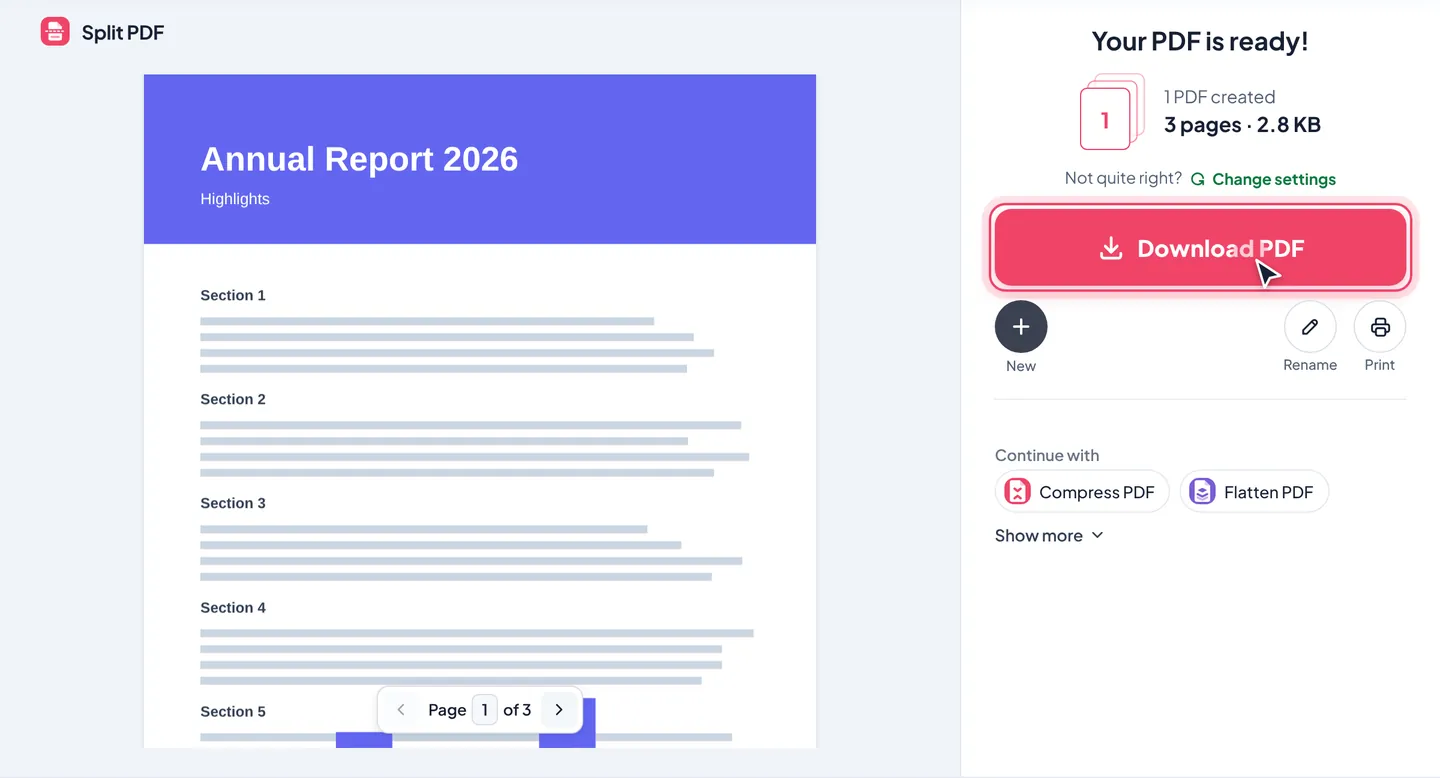
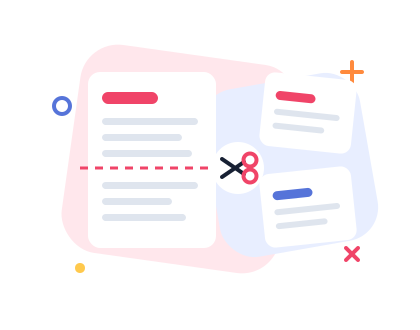
Three ways to split
Extract the pages you choose, turn every page into its own PDF, or build custom ranges like 1-4 and 9-11. Pick whatever fits the job. Whether you need one chapter from a book, a single invoice from a long statement or every page on its own, it only takes a few clicks.
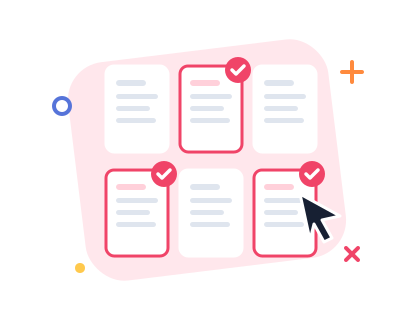
Pick pages by sight
Every page shows as a small preview, so you can click the ones you want instead of guessing page numbers. Selected pages are clearly marked, and you can change your choice as often as you like before you download anything.
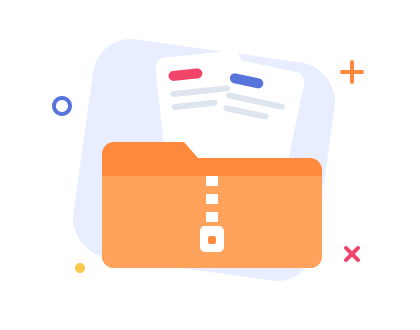
One PDF or a ZIP of many
Keep your pages together in a single PDF, or get each page or range as its own file, packed neatly into one ZIP download. Everything arrives in one tidy download instead of dozens of separate files.
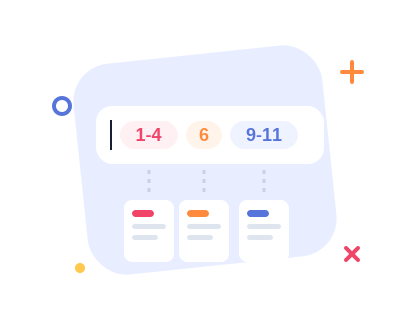
Type exact page ranges
Know the pages you need? Type them like 1-4, 6, 9-11 and FileScape builds the files for you. It's the fastest way to work with long documents, where scrolling through hundreds of previews would take far too long.
Why use FileScape

Processed in your browser
Splitting happens in your browser. Your PDF isn't uploaded to our server.
See where your files goFree, no sign-up
No account, no email and no watermark on your files.
Works on any device
Use it in any modern browser on Windows, Mac, Android or iPhone.
Frequently asked questions
Enter that page number as a range, then download.
Yes. Choose "Each range becomes a PDF" and you'll get a ZIP with one PDF per range.
No. Pages are copied exactly as they are.
No. Everything happens in your browser.
Open the Pages tab. Each page becomes a separate PDF, and you download them all together in a ZIP.
Use a dash for a range and commas between items, like 1-4, 6, 9-11.
Yes. Big files take a little longer, and very large ones depend on your device's memory.
One PDF at a time. When you're done, choose Change PDF to split the next one.
Made by a small, independent team
We build FileScape ourselves and keep adding the tools people ask for. If something didn't work or a tool is missing, tell us. Every message is read.